Friday, February 26, 2016

FridayFun XXIII

Finally Friday again...
I just recognized that it's more than a year ago that I posted a Friday Fun Component...so here you go...

Last Monday I was skimming the web for interesting controls and stumbled upon the following image.


This might be a very handy gauge for some visualizations like health dashboards etc. In principle it would be very easy to realize something like this because it just contains a few visual parts.
The interesting part of that control is the wavy shaped top edge of the inner fill. If you would like to keep it static this is also no big deal BUT...would it not be cooler if the surface will be animated???
I found some code on the web that did something similar and ported it to Java.

Long story short, here is a little video of the control in action...


I've added the code to the medusa demo project that you can find on github (it is called FunLevelGauge).
Instead of using a special Skin for the Medusa Gauge I've simply took a Region and added a Medusa Gauge as member variable.
The code for the Gauge is very simple and looks like this...

Gauge gauge = GaugeBuilder.create()
                          .minValue(0)
                          .maxValue(1)
                          .animated(true)
                          .build();
As you can see this is really nothing special. For the visualization I used a JavaFX Canvas node that I clipped with a simple JavaFX Circle element.
The ring around the control is again a JavaFX Circle that has a transparent fill and a stroke with the same color as the inner part.
The JavaFX Text node in the center of the control changes it's color dependent on the fill level of the control. The color for the text will be derived from the fill color.
If you would like to play around with the waviness of the surface you might want to play around with the following parameters...
  • detail        (no of points used for the wave)
  • friction            
  • density 
In the example I add an impulse to the wave every second to keep the wave moving but you could also think about to add an impulse only when a new level was set like this...
public void setLevel(final double LEVEL) {
    gauge.setValue(LEVEL);
    Point p;
    for( int i = 0 ; i < detail + 1 ; i++ ) {
        p = particles.get(i);
        p.y = size * (1d - LEVEL);
        p.originalY = p.y;
    }
    text.setText(String.format(Locale.US, "%.0f%%", 100 * LEVEL));
    text.setX((size - text.getLayoutBounds().getWidth()) * 0.5);
    text.setFill(LEVEL < 0.45 ? darkerColor : brighterColor);
    impulse();
}
Therefore you just have to add the call the impulse() method to the setLevel() method and remove the following code from the AnimationTimer
if (now > lastImpulseCall + impulseInterval) {
    impulse();
    lastImpulseCall = now;
}


Please keep in mind that this is (like the name says) a Fun Component and that there is always room for improvements but it's good enough to give you some ideas...

And that's it for today, enjoy the upcoming weekend and keep coding...

Wednesday, February 24, 2016

Building a multi gauge with Medusa

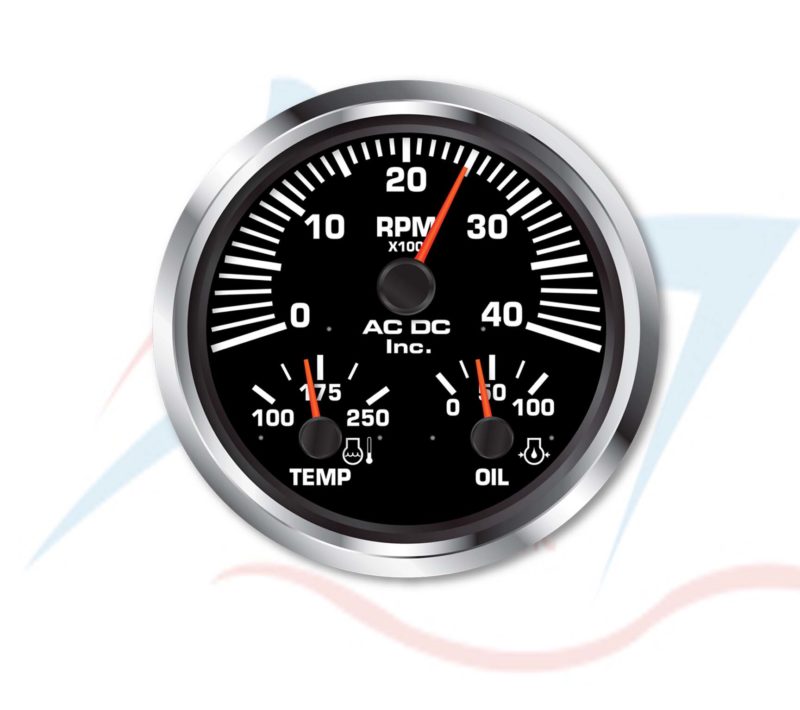
Today I will show you how to build what I call a multi gauge, so a gauge that shows more than one single value but for example shows three different values. This comes in handy when you don't have much space to visualize data.

Here is an example of such a gauge
So in this case the RPM is the most important value that you check very often where the temperature and oil are not checked that often which explains the smaller size. To build something similar with Medusa we need to take three Gauge objects.
  • 1x GaugeSkin (RPM)
  • 2x Horizontal Skins (TEMP and OIL)
Overlaying those controls in one area is not a big problem because the standard background fill of the Medusa gauges is transparent, so we simply have to put all three gauges in one layout container.
So the idea is as follows, we create a new class named MultiGauge that extends Region. Therefore I use the following skeleton..

public class MultiGauge extends Region {
    private static final double  PREFERRED_WIDTH  = 250;
    private static final double  PREFERRED_HEIGHT = 250;
    private static final double  MINIMUM_WIDTH    = 50;
    private static final double  MINIMUM_HEIGHT   = 50;
    private static final double  MAXIMUM_WIDTH    = 1024;
    private static final double  MAXIMUM_HEIGHT   = 1024;
    private static       double  aspectRatio;
    private              boolean keepAspect;
    private              double  size;
    private              double  width;
    private              double  height;
    private              Pane    pane;


    // ******************** Constructors **************************************
    public MultiGauge() {
        getStylesheets().add(MultiGauge.class.getResource("styles.css").toExternalForm());
        getStyleClass().add(getClass().getSimpleName().toLowerCase());
        aspectRatio = PREFERRED_HEIGHT / PREFERRED_WIDTH;
        keepAspect  = true;
        init();
        initGraphics();
        registerListeners();
    }


    // ******************** Initialization ************************************
    private void init() {
        if (Double.compare(getPrefWidth(), 0.0) <= 0 || Double.compare(getPrefHeight(), 0.0) <= 0 ||
            Double.compare(getWidth(), 0.0) <= 0 || Double.compare(getHeight(), 0.0) <= 0) {
            if (getPrefWidth() > 0 && getPrefHeight() > 0) {
                setPrefSize(getPrefWidth(), getPrefHeight());
            } else {
                setPrefSize(PREFERRED_WIDTH, PREFERRED_HEIGHT);
            }
        }

        if (Double.compare(getMinWidth(), 0.0) <= 0 || Double.compare(getMinHeight(), 0.0) <= 0) {
            setMinSize(MINIMUM_WIDTH, MINIMUM_HEIGHT);
        }

        if (Double.compare(getMaxWidth(), 0.0) <= 0 || Double.compare(getMaxHeight(), 0.0) <= 0) {
            setMaxSize(MAXIMUM_WIDTH, MAXIMUM_HEIGHT);
        }
    }

    private void initGraphics() {

        pane = new Pane();

        getChildren().setAll(pane);
    }

    private void registerListeners() {
        widthProperty().addListener(o -> resize());
        heightProperty().addListener(o -> resize());
    }


    // ******************** Methods *******************************************
    private void handleControlPropertyChanged(final String PROPERTY) {
        if ("".equals(PROPERTY)) {

        }
    }

    
    // ******************** Resizing ******************************************
    private void resize() {
        width  = getWidth() - getInsets().getLeft() - getInsets().getRight();
        height = getHeight() - getInsets().getTop() - getInsets().getBottom();
        size   = width < height ? width : height;

        if (keepAspect) {
            if (aspectRatio * width > height) {
                width = 1 / (aspectRatio / height);
            } else if (1 / (aspectRatio / height) > width) {
                height = aspectRatio * width;
            }
        }
        
        if (width > 0 && height > 0) {
            // Use for square controls where width == height            pane.setMaxSize(size, size);
            pane.relocate((getWidth() - size) * 0.5, (getHeight() - size) * 0.5);

            // Use for rectangular controls width != height            pane.setMaxSize(width, height);
            pane.relocate((getWidth() - width) * 0.5, (getHeight() - height) * 0.5);
            
        }
    }
}

With this template you could easily compose a new control out of existing controls. So the main work we have to do is to create the three gauges and put them in the right location in the new control.
Let's start with the rpmGauge control. Because I've explained styling a Medusa gauge already in my blogpost "Building a fuel gauge using Medusa" I won't go through all the details but directly give you the code, here it is...

rpmGauge = GaugeBuilder.create()
                       .borderPaint(Color.WHITE)
                       .foregroundBaseColor(Color.WHITE)
                       .prefSize(400, 400)
                       .startAngle(290)
                       .angleRange(220)
                       .minValue(0)
                       .maxValue(4000)
                       .valueVisible(false)
                       .minorTickMarksVisible(false)
                       .majorTickMarkType(TickMarkType.BOX)
                       .mediumTickMarkType(TickMarkType.BOX)
                       .title("RPM\nx100")
                       .needleShape(NeedleShape.ROUND)
                       .needleSize(NeedleSize.THICK)
                       .needleColor(Color.rgb(234, 67, 38))
                       .knobColor(Gauge.DARK_COLOR)
                       .customTickLabelsEnabled(true)
                       .customTickLabelFontSize(40)
                       .customTickLabels("0", "", "10", "", "20", "", "30", "", "40")
                       .animated(true)
                       .build();

We add this code block to the initGraphics() method and we also have to add the rpmGauge as a member variable.
To give you an idea how it would look like, here is a little screenshot...


So the next thing we have to do is adding the temperature and oil gauge. Long story short, here is the code...

tempGauge = GaugeBuilder.create()
                        .skinType(SkinType.HORIZONTAL)
                        .prefSize(170, 170)
                        .autoScale(false)
                        .foregroundBaseColor(Color.WHITE)
                        .title("TEMP")
                        .valueVisible(false)
                        .angleRange(90)
                        .minValue(100)
                        .maxValue(250)
                        .needleShape(NeedleShape.ROUND)
                        .needleSize(NeedleSize.THICK)
                        .needleColor(Color.rgb(234, 67, 38))
                        .minorTickMarksVisible(false)
                        .mediumTickMarksVisible(false)
                        .majorTickMarkType(TickMarkType.BOX)
                        .knobColor(Gauge.DARK_COLOR)
                        .customTickLabelsEnabled(true)
                        .customTickLabelFontSize(36)
                        .customTickLabels("100", "", "", "", "", "", "", "175", "", "", "", "", "", "", "", "250")
                        .animated(true)
                        .build();

oilGauge = GaugeBuilder.create()
                       .skinType(SkinType.HORIZONTAL)
                       .prefSize(170, 170)
                       .foregroundBaseColor(Color.WHITE)
                       .title("OIL")
                       .valueVisible(false)
                       .angleRange(90)
                       .needleShape(NeedleShape.ROUND)
                       .needleSize(NeedleSize.THICK)
                       .needleColor(Color.rgb(234, 67, 38))
                       .minorTickMarksVisible(false)
                       .mediumTickMarksVisible(false)
                       .majorTickMarkType(TickMarkType.BOX)
                       .knobColor(Gauge.DARK_COLOR)
                       .customTickLabelsEnabled(true)
                       .customTickLabelFontSize(36)
                       .customTickLabels("0", "", "", "", "", "50", "", "", "", "", "100")
                       .animated(true)
                       .build();

After adding both gauges to our control it will now look like this...


It's not perfect but also not too bad...and it works :)
The only thing that we now miss is how to resize and relocate the gauges correctly, well that's pretty simple and here is the related code from the resize() method of our MultiGauge control...

private void resize() {
    double width  = getWidth() - getInsets().getLeft() - getInsets().getRight();
    double height = getHeight() - getInsets().getTop() - getInsets().getBottom();
    size          = width < height ? width : height;

    if (size > 0) {
        pane.setMaxSize(size, size);
        pane.relocate((getWidth() - size) * 0.5, (getHeight() - size) * 0.5);

        rpmGauge.setPrefSize(size, size);

        tempGauge.setPrefSize(size * 0.425, size * 0.425);
        tempGauge.relocate(size * 0.1, size * 0.5625);

        oilGauge.setPrefSize(size * 0.425, size * 0.425);
        oilGauge.relocate(size * 0.475, size * 0.5625);
    }
}

As you can see it is really simple to resize and relocate the controls within our MultiGauge control. To get access to the gauges I simply added three get methods for each gauge and that's all it needs :)

You will find the complete example on github.

That's it for today...so keep coding... :)

Monday, February 22, 2016

Add some interactivity to your Medusa Gauges...

Hi there,
here is another short blogpost about how to add some interactivity to your Medusa gauge.
Sometimes it could be useful to be able to have an additional button in a gauge to trigger some things like taking a screenshot, stop the communication, start a timer etc.
For these kind of things I've added the ability to press the knob in the following skin types

  • Gauge (default)
  • Horizontal
  • Vertical
  • Quarter
  • Modern
To activate that feature you simply have to set the interactive property to true like you can see in the following code snippet...

Gauge gauge = GaugeBuilder.create()
                          .skinType(SkinType.MODERN)
                          .interactive(true)
                          .onButtonPressed(e -> System.out.println("PRESSED"))
                          .onButtonReleased(e -> System.out.println("RELEASED"))
                          .build();

When you use this code you will see that you will be able to press the knob in the gauge and that it will print the corresponding text on the console. Pressing the button will also be visualized so that you get visual feedback in case you pressed the button.
Here is a litte screenshot that shows the two different states when using the Modern Skin...


And that's it, I hope you have some use for this feature and as always...keep coding...

Wednesday, February 17, 2016

Areas and Sections in Medusa

Today I will show you a feature that might be interesting for you, sections and areas in gauges and clocks.
Sometimes you want to visualize a special area in your gauge like the red area in a rpm gauge.
To realize this in Medusa you simply can add a so called Section object. 
A Section object has the following properties

  • start (defines the value where the section should start)
  • stop (defines the value where the section should stop)
  • text (defines a text that can/will be drawn in some gauges)
  • icon (defines an image that can be used in some gauges)
  • color (defines the color that will be used to colorize the section)
  • highlightColor (defines the color that will be used for highlighting the section)
  • textColor (defines the color that will be used to colorize the text)
Because the Section can also fire two events
  • Event when value entered the Section
  • Event when value left the Section
Therefore you will find methods to add EventHandlers to the Section
  • setOnSectionEntered(EventHandler<SectionEvent> handler)
  • setOnSectionLeft(EventHandler<SectionEvent> handler)
Those events will only be fired if you enable it in the Medusa gauge or clock. The method to enable the event handling is 
  • checkSectionsForValue(true/false)
If this property is enabled the final value of the gauge will be checked against each Section that was defined for the gauge and events will be fired if a value entered or left a Section.
This feature can be used to control stuff for example send MQTT messages etc. when a value entered and left a Section in a Medusa clock.


If you would like to add it in a more prominent way you could add this Section object as a so called area which will look as follows.


The code that you need to create this area looks like follows
Gauge gauge = GaugeBuilder.create()
                          .areasVisible(true)
                          .areas(new Section(75, 100, Color.RED))
                          .build();
If you prefer a more reserved visualization you might want to add the same Section object as a section instead of an area. In this case it would look like this...


For adding a section like seen on the image above you have to use the following code instead...
Gauge gauge = GaugeBuilder.create()
                          .sectionsVisible(true)
                          .sections(new Section(75, 100, Color.RED))
                          .build();
You could also use both, sections and areas at the same time where sections will always be drawn on top of areas. Here is a little example...

Adding a section and an area you simply combine both code snippets like this...
Gauge gauge = GaugeBuilder.create()
                          .areasVisible(true)
                          .areas(new Section(75, 100, Color.ORANGE))
                          .sectionsVisible(true)
                          .sections(new Section(75, 100, Color.RED))
                          .build();
That's nice so far but sometimes you don't want to have your UI look like a parrot but more clean. In this case you might want to show the section only if the current value is inside the section and otherwise the section should be dimmed or transparent.
For this scenario I've implemented the highlighting feature which is available for sections and areas in Medusa gauges and Medusa clocks.

As an example let's create a gauge with four sections. Each section should only be visible if the current value is inside the section. Here is the code you need for this scenario...
Gauge gauge = GaugeBuilder.create()
                          .sectionsVisible(true)
                          .checkSectionsForValue(true) 
                          .highlightSections(true)
                          .sections(new Section(0, 25, Color.TRANSPARENT, Color.rgb(0, 0, 222)),
                                    new Section(25, 50, Color.TRANSPARENT, Color.rgb(0, 222, 0)),
                                    new Section(50, 75, Color.TRANSPARENT, Color.rgb(222, 222, 0)),
                                    new Section(75, 100, Color.TRANSPARENT, Color.rgb(222, 0, 0)))
                          .animated(true)
                          .build();
As you can see we define the standard color for each section as Color.TRANSPARENT which means the sections are invisible by default. The highlight colors are defined as the real section color.
To make use of this feature we also have to set checkSectionsForValue(true) and highlightSections(true). The result would look like follows...


If this is too confusing for you it is also possible to use dimmed colors for the section colors instead. In that case the code might look like this...
Gauge gauge = GaugeBuilder.create()
                          .sectionsVisible(true)
                          .checkSectionsForValue(true)
                          .highlightSections(true)
                          .sections(new Section(0, 25, Color.rgb(0, 0, 222, 0.2), Color.rgb(0, 0, 222)), 
                                    new Section(25, 50, Color.rgb(0, 222, 0, 0.2), Color.rgb(0, 222, 0)),
                                    new Section(50, 75, Color.rgb(222, 222, 0, 0.2), Color.rgb(222, 222, 0)),
                                    new Section(75, 100, Color.rgb(222, 0, 0, 0.2), Color.rgb(222, 0, 0)))
                          .animated(true)
                          .build();
And the visual result of that code will look like this...


As you can see the current value is in the green section which is drawn with the full opaque version of the color where all other sections are drawn with the transparent colors.
The same feature is also available in the Medusa clock but here we use the TimeSection which has the same properties and functionality as the gauge section but uses LocalTime objects instead of double values for the start and stop values. Because it's very much the same as with the gauges I'll just give you a short example of a clock. 
Clock clock = ClockBuilder.create()
                          .sectionsVisible(true)
                          .checkSectionsForValue(true)
                          .highlightSections(true)
                          .sections(new TimeSection(LocalTime.now().plusSeconds(20), LocalTime.now().plusHours(1), Color.rgb(0, 100, 200, 0.2), Color.rgb(0, 100, 200)))
                          .running(true)
                          .build();
And when we run that code we first will see the following clock...


As you can see the section will be drawn with the transparent color because the current time has not reached the section yet.
After a couple of seconds the current time is "inside" of the section and therefore the section will be highlighted as follows...

With this you could visualize different things like for example appointments on your calendar etc.

That's it for today...keep coding... 

Thursday, February 11, 2016

Create your own Medusa Gauge Skin

Hi there,

Today I will show you how you can easily create your own skin for the Medusa gauge. Therefore the first thing we need to do is to have an idea of what we would like to visualize. For this post I've decided to create something like a LED bar graph that you might know from your home stereo equalizer. Usually it looks similar to this...at least when I was young :)


So the idea is to create a bar of rectangles or circles that will be filled dependent on the current value. And as you can see on the image above it would be nice to have different colors for values in range (green), warning (yellow) and over the limit (red).
I know I mentioned it couple of times but if you work with graphics (which we do here) it's always good to be able to use a vector drawing program to create a prototype.
It is no secret that I really love Adobe Fireworks because it has all vector features I need plus some bitmap capabilities and it's not confusing like Illustrator with all it's features.
I decided to go with circular led's and my prototype looks like follows...


I use the following values for my prototype

  • ledSize     = 10 px (width * 0.5)
  • ledSpacer = 1px (space between led's, width * 0.05)
  • ledBorder = 5 px (space on top, left, bottom and right side of led stripe, width * 0.25)
  • noOfLeds  = 20
  • width       = 20 px
  • height      = 229 px
This is in principle all we need to get started.
When it comes to coding we have different options in JavaFX on how to draw the led's
  • Use Regions with CSS
  • Use Circles optional with CSS
  • Use Canvas without CSS
Because we have 20 led's in our bar the two first approaches would need 20 nodes on the scene graph to visualize the led's. And because I like to save nodes on the scene graph I will go with the third option, using Canvas nodes without CSS.
The drawback when using the JavaFX Canvas is that you are responsible for drawing it, means everytime we want to set the current value we have to redraw the right Canvas node. Another drawback is that you can only hookup one mouse/touch listener to each Canvas. So if you want to have mouse events in different locations on your Canvas you need to implement the logic by yourself.
But because we only do visualization of values we don't need mouse/touch interaction anyway, so Canvas is fine.
So we will use two Canvas nodes, one for the background where we always draw all led's in an OFF state. This Canvas node only needs a redraw when the size of the control or the sections changes. The other Canvas node will be used to draw the currently active led's.

In principle this is all we need but I usually add another Pane to be able to give the control a specific background and border fill.
That means we will end up with 3 nodes for our custom control which is fine :)
The structure of a custom skin depends on your personal style of coding, if you take a look at my controls you will usually find the following methods

  • Constructor
  • init()                                           (primarily used for initial sizing)
  • initGraphics()                              (setup the scene graph once)
  • registerListeners()                       (register listeners to properties)
  • handleEvents(String eventType)   (handle events received by listeners)
  • redraw()                                      (reload graphic data and redraw)
  • resize()                                        (resize all components)
In addition you will often find different methods that will create or draw parts of the control.
In our case we will have an additional method for drawing the background named drawBackground() and another method to draw the currently active led's named setBar(double value).
I won't go through all the code because it's around 260 lines but we will take a look at the important parts.

Constructor

public CustomGaugeSkin(Gauge gauge) {
    super(gauge);
    if (gauge.isAutoScale()) gauge.calcAutoScale();
    range              = gauge.getRange();
    stepSize           = NO_OF_LEDS / range;
    barBackgroundColor = gauge.getBarBackgroundColor();
    barColor           = gauge.getBarColor();
    sectionsVisible    = gauge.getSectionsVisible();
    sections           = gauge.getSections();
    ledSize            = PREFERRED_WIDTH * 0.5;
    ledSpacer          = PREFERRED_WIDTH * 0.05;
    ledBorder          = PREFERRED_WIDTH * 0.25;

    init();
    initGraphics();
    registerListeners();
}

As you can see we only define some variables that we need before we call the init(), initGraphics() and registerListeners() methods.

The init() method is some kind of standard and not that interesting so let's take a look at the initGraphics() method where we set up the JavaFX scene graph.

initGraphics()

private void initGraphics() {
    backgroundCanvas = new Canvas(PREFERRED_WIDTH, PREFERRED_HEIGHT);
    backgroundCtx    = backgroundCanvas.getGraphicsContext2D();

    foregroundCanvas = new Canvas(PREFERRED_WIDTH, PREFERRED_HEIGHT);
    foregroundCtx    = foregroundCanvas.getGraphicsContext2D();

    ledInnerShadow   = new InnerShadow(BlurType.TWO_PASS_BOX, 
                                       Color.BLACK, 
                                       0.2 * PREFERRED_WIDTH, 
                                       0, 0, 0);
    ledDropShadow    = new DropShadow(BlurType.TWO_PASS_BOX, 
                                      getSkinnable().getBarColor(), 
                                      0.3 * PREFERRED_WIDTH, 
                                      0, 0, 0);

    pane = new Pane(backgroundCanvas, foregroundCanvas);
    pane.setBorder(new Border(new BorderStroke(getSkinnable().getBorderPaint(), 
                                               BorderStrokeStyle.SOLID,
                                               CornerRadii.EMPTY, 
                                               new BorderWidths(1))));
    pane.setBackground(new Background(new BackgroundFill(getSkinnable().getBackgroundPaint(), 
                                                         CornerRadii.EMPTY, 
                                                         Insets.EMPTY)));

    getChildren().setAll(pane);
}

In the initGraphics() method you can see that we create the two Canvas nodes, two effects that we need for the led's and the Pane I mentioned above. Then we add the Canvas nodes to the Pane and add the pane to the Control itself.
The next method we will take a look at is the redraw() method.

redraw()

private void redraw() {
    pane.setBackground(new Background(new BackgroundFill(getSkinnable().getBackgroundPaint(), 
                                                         CornerRadii.EMPTY, 
                                                         Insets.EMPTY)));
    sectionsVisible    = getSkinnable().getSectionsVisible();
    barBackgroundColor = getSkinnable().getBarBackgroundColor();
    barColor           = getSkinnable().getBarColor();
    drawBackground();
    setBar(getSkinnable().getCurrentValue());
}

Here we just take the current values for the colors and then draw the background and set the led bar to the current value. Everytime the width or height of the Control will change the resize() method will be called which looks like follows...

resize()

private void resize() {
    width  = getSkinnable().getWidth() - 
             getSkinnable().getInsets().getLeft() - 
             getSkinnable().getInsets().getRight();
    height = getSkinnable().getHeight() - 
             getSkinnable().getInsets().getTop() - 
             getSkinnable().getInsets().getBottom();

    if (ASPECT_RATIO * width > height) {
        width = 1 / (ASPECT_RATIO / height);
    } else if (1 / (ASPECT_RATIO / height) > width) {
        height = ASPECT_RATIO * width;
    }

    if (width > 0 && height > 0) {
        pane.setMaxSize(width, height);
        pane.relocate((getSkinnable().getWidth() - width) * 0.5, 
                      (getSkinnable().getHeight() - height) * 0.5);

        ledInnerShadow.setRadius(0.2 * width);
        ledDropShadow.setRadius(0.25 * width);

        ledSize   = width * 0.5;
        ledSpacer = width * 0.05;
        ledBorder = 0.25 * width;

        backgroundCanvas.setWidth(width);
        backgroundCanvas.setHeight(height);

        foregroundCanvas.setWidth(width);
        foregroundCanvas.setHeight(height);
    }
}

As you can see we first of all get the available width and height in consideration of the given insets. After that we calculate the control width and height dependent on the aspect ratio.
If the width and height are bigger than 0 we resize the three Nodes (2xCanvas and 1xPane), set the radii of the shadows and calculate parameters like ledSize, ledSpacer and ledBorder.
So there are two more methods left that we should take a look at, first the drawBackground() method.

drawBackground()

private void drawBackground() {
    backgroundCtx.clearRect(0, 0, width, height);
    backgroundCtx.setFill(barBackgroundColor);
    int listSize  = sections.size();
    Section currentSection;
    for (int i = 0 ; i < NO_OF_LEDS ; i++) {
        if (sectionsVisible) {
            double value = (i + 1) / stepSize;
            for (int j = 0 ; j < listSize ; j++) {
                currentSection = sections.get(j);
                if (currentSection.contains(value)) {
                    backgroundCtx.setFill(currentSection.getColor().darker().darker());
                    break;
                } else {
                    backgroundCtx.setFill(barBackgroundColor);
                }
            }
        }
        backgroundCtx.save();
        backgroundCtx.setEffect(ledInnerShadow);
        backgroundCtx.fillOval(ledBorder, 
                               height - ledSize - (i * (ledSpacer + ledSize)) - ledBorder, 
                               ledSize, 
                               ledSize);
        backgroundCtx.restore();
    }
}

Here we first clear the GraphicsContext because we are responsible for the drawing and clearing. I won't go through all steps because I think the code is somehow self explaining. After clearing the GraphicsContext we iterate over the number of led's and draw each led with either the barBackgroundColor or if we have sections enabled with the section color for the given led. To make the switched off led's look a bit better we apply an InnerShadow to each led.
This method only needs to be called when either the sections or section visibility change or when the control was resized.
The last method we will take a look at is the setBar(double value) method.

setValue(double value)

private void setBar(final double VALUE) {
    foregroundCtx.clearRect(0, 0, width, height);
    int            activeLeds = (int) Math.floor(VALUE * stepSize);
    int            listSize   = sections.size();
    Section        currentSection;
    RadialGradient gradient;
    foregroundCtx.setFill(barColor);
    for (int i = 0 ; i < activeLeds ; i++) {
        if (sectionsVisible) {
            double value = (i + 1) / stepSize;
            for (int j = 0 ; j < listSize ; j++) {
                currentSection = sections.get(j);
                if (currentSection.contains(value)) {
                    gradient = new RadialGradient(0, 
                                                  0, 
                                                  ledSize, 
                                                  height - ledSize - (i * (ledSpacer + ledSize)), 
                                                  ledBorder, 
                                                  false , 
                                                  CycleMethod.NO_CYCLE, 
                                                  new Stop(0, currentSection.getColor()), 
                                                  new Stop(0.55, currentSection.getColor()), 
                                                  new Stop(0.85, currentSection.getColor().darker()), 
                                                  new Stop(1, Color.rgb(0, 0, 0, 0.65)));
                    foregroundCtx.setFill(gradient);
                    ledDropShadow.setColor(currentSection.getColor());
                    break;
                } else {
                    gradient = new RadialGradient(0, 
                                                  0, 
                                                  ledSize, 
                                                  height - ledSize - (i * (ledSpacer + ledSize)), 
                                                  ledBorder, 
                                                  false , 
                                                  CycleMethod.NO_CYCLE, 
                                                  new Stop(0, barColor), 
                                                  new Stop(0.55, barColor), 
                                                  new Stop(0.85, barColor.darker()), 
                                                  new Stop(1, Color.rgb(0, 0, 0, 0.65)));
                    foregroundCtx.setFill(gradient);
                    ledDropShadow.setColor(barColor);
                }
            }
        } else {
            gradient = new RadialGradient(0, 
                                          0, 
                                          ledSize, 
                                          height - ledSize - (i * (ledSpacer + ledSize)), 
                                          ledBorder, 
                                          false , 
                                          CycleMethod.NO_CYCLE, 
                                          new Stop(0, barColor), 
                                          new Stop(0.55, barColor), 
                                          new Stop(0.85, barColor.darker()), 
                                          new Stop(1, Color.rgb(0, 0, 0, 0.65)));
            foregroundCtx.setFill(gradient);
            ledDropShadow.setColor(barColor);
        }
        foregroundCtx.save();
        foregroundCtx.setEffect(ledDropShadow);
        foregroundCtx.fillOval(ledBorder, 
                               height - ledSize - (i * (ledSpacer + ledSize)) - ledBorder, 
                               ledSize, 
                               ledSize);
        foregroundCtx.restore();
    }
}

In principle this method does the same as the drawBackground() method with the difference that it only draws as many led's as calculated from the given value. Means the given value will be converted to a number of led's that will be active. Then we iterate over this number and dependent on sections visible/available we color each led either with the barColor or with the appropriate section color.

Well that's nearly all that is needed to create our custom skin for the Medusa Gauge. 

You can find the complete code on github...

If we would like to use our new skin we need to simply set it like follows...
Gauge gauge = GaugeBuilder.create()
                          .backgroundPaint(Gauge.DARK_COLOR)
                          .barBackgroundColor(Color.DARKRED)
                          .barColor(Color.RED)
                          .minValue(0)
                          .maxValue(100)
                          .sectionsVisible(true)
                          .sections(new Section(0, 70, Color.LIME),
                                    new Section(70,85, Color.YELLOW),
                                    new Section(85, 100, Color.RED))
                          .build();

gauge.setSkin(new CustomGaugeSkin(gauge));
So we define a gauge with some parameters like min- and maxValue, colors for the bar and barBackground and some sections.
If you start the CustomGaugeSkinDemo from the Medusa demo project (github) you will see the following output...


In this demo you see 10 gauges with our new custom skin and the scene graph will only contain 40 nodes which is nice.

So that's it for today...keep coding... :)

Monday, February 8, 2016

Building a compass with Medusa

Here we go again...
A couple of days ago the question came up if it is possible to create a compass control with the Medusa gauge? To be honest a dedicated control would fit better but it is possible. The problem with a compass is that it has a range from 0-359 degrees and usually there is something like zero-crossing. Means that the needle always takes the shortest distance to the new position, no matter where it is. So if the needle is pointing to 10 degrees and the next value is 340 degrees the needle would rotate counter clockwise to the new value which is different from the usual gauge behavior where the needle would go clockwise.

I've implemented an experimental feature in Medusa 3.1 named needleBehavior which could either be NeedleBehavior.STANDARD or NeedleBehavior.OPTIMIZED. Only the GaugeSkin makes use of the behavior and also only if it is animated (otherwise it doesn't make sense).
I've only tested it with the following control so be warned to NOT use it with the standard gauges because I'm pretty sure it will lead to wrong behavior.
But long story short, let's take a look at the gauge setup for a compass like control...
Gauge gauge = GaugeBuilder.create()
                          .minValue(0)
                          .maxValue(359)
                          .startAngle(180)
                          .angleRange(360)
                          .build();
So first of all we created a normal gauge with a range from 0-359. It should have 0 degree on top which means we set the startAngle to 180 and the angleRange to 360 for a full circle.


Now we have to disable the autoscaling feature to get exactly our required range from 0-359 and replace the tick labels with our custom ones ("N", "E", "S", "W") in a bigger size.
Gauge gauge = GaugeBuilder.create()
                          .minValue(0)
                          .maxValue(359)
                          .startAngle(180)
                          .angleRange(360)
                          .autoScale(false)
                          .customTickLabelsEnabled(true)
                          .customTickLabels("N", "", "", "", "", "", "", "", "",
                                            "E", "", "", "", "", "", "", "", "",
                                            "S", "", "", "", "", "", "", "", "",
                                            "W", "", "", "", "", "", "", "", "")
                          .customTickLabelFontSize(72)
                          .build();
This will give us the following visualization...


Well that's not bad but the tick marks are annoying so let's get rid of that and the needle could also be a bit bigger.
Gauge gauge = GaugeBuilder.create()                             
                          .minValue(0)
                          .maxValue(359)
                          .startAngle(180)
                          .angleRange(360)
                          .autoScale(false)
                          .customTickLabelsEnabled(true)
                          .customTickLabels("N", "", "", "", "", "", "", "", "",
                                            "E", "", "", "", "", "", "", "", "",
                                            "S", "", "", "", "", "", "", "", "",
                                            "W", "", "", "", "", "", "", "", "")
                          .customTickLabelFontSize(72)
                          .minorTickMarksVisible(false)
                          .mediumTickMarksVisible(false)
                          .majorTickMarksVisible(false)
                          .needleType(NeedleType.FAT)
                          .build();
And with this modifications it will look like this...


Ok, we are getting there, so the value text has to be removed, the knob and needle could have a more flat style and a border around the control would also be nice...well let's do it...
Gauge gauge = GaugeBuilder.create()
                          .minValue(0)
                          .maxValue(359)
                          .startAngle(180)
                          .angleRange(360)
                          .autoScale(false)
                          .customTickLabelsEnabled(true)
                          .customTickLabels("N", "", "", "", "", "", "", "", "",
                                            "E", "", "", "", "", "", "", "", "",
                                            "S", "", "", "", "", "", "", "", "",
                                            "W", "", "", "", "", "", "", "", "")
                          .customTickLabelFontSize(72)
                          .minorTickMarksVisible(false)
                          .mediumTickMarksVisible(false)
                          .majorTickMarksVisible(false)
                          .valueVisible(false)
                          .needleType(NeedleType.FAT)
                          .needleShape(NeedleShape.FLAT)
                          .knobType(KnobType.FLAT)
                          .knobColor(Gauge.DARK_COLOR)
                          .borderPaint(Gauge.DARK_COLOR)
                          .build();
So with this modifications in place our compass looks not too bad...


So now let's switch on the animation and needleBehavior like follows...
Gauge gauge = GaugeBuilder.create()
                          .minValue(0)
                          .maxValue(359)
                          .startAngle(180)
                          .angleRange(360)
                          .autoScale(false)
                          .customTickLabelsEnabled(true)
                          .customTickLabels("N", "", "", "", "", "", "", "", "",
                                            "E", "", "", "", "", "", "", "", "",
                                            "S", "", "", "", "", "", "", "", "",
                                            "W", "", "", "", "", "", "", "", "")
                          .customTickLabelFontSize(72)
                          .minorTickMarksVisible(false)
                          .mediumTickMarksVisible(false)
                          .majorTickMarksVisible(false)
                          .valueVisible(false)
                          .needleType(NeedleType.FAT)
                          .needleShape(NeedleShape.FLAT)
                          .knobType(KnobType.FLAT)
                          .knobColor(Gauge.DARK_COLOR)
                          .borderPaint(Gauge.DARK_COLOR)
                          .animated(true)
                          .animationDuration(500)
                          .needleBehavior(NeedleBehavior.OPTIMIZED)
                          .build();
If you now set the value of the gauge you will (hopefully) see that the needle always takes the optimized way to the next value (means the shortest angle distance). 

ATTENTION:
Keep in mind that as soon as you hook this control up to a real device you should always switch of the animation because values from real devices might come in at high rate.

Because we switched of the value text you might want to add a separate Label that contains the current value of the gauge. Therefore you simply add it as follows...
Label value = new Label("0°");
value.setFont(Fonts.latoBold(72));
value.setAlignment(Pos.CENTER);
And to update the Label with the value of the gauge we simply add a listener to the valueProperty() of the gauge like this...
gauge.valueProperty().addListener(o -> {
    value.setText(String.format(Locale.US, "%.0f°", gauge.getValue()));
});
If you put those controls in a VBox you will get something like this...


And that's it...not too bad right :)

The code can be found on github...

Keep coding...